Tonmind PA System Pro añade función de grabación inteligente con múltiples modos de activación
Sep 09, 2026La nueva función ofrece tres modos de grabación: grabación programada, detección de palabras clave y detección de efectos de sonido. Los usuarios pueden grabar audio en momentos específicos o activar automáticamente la grabación y las acciones de zona cuando se detectan palabras clave predefinidas o sonidos específicos.
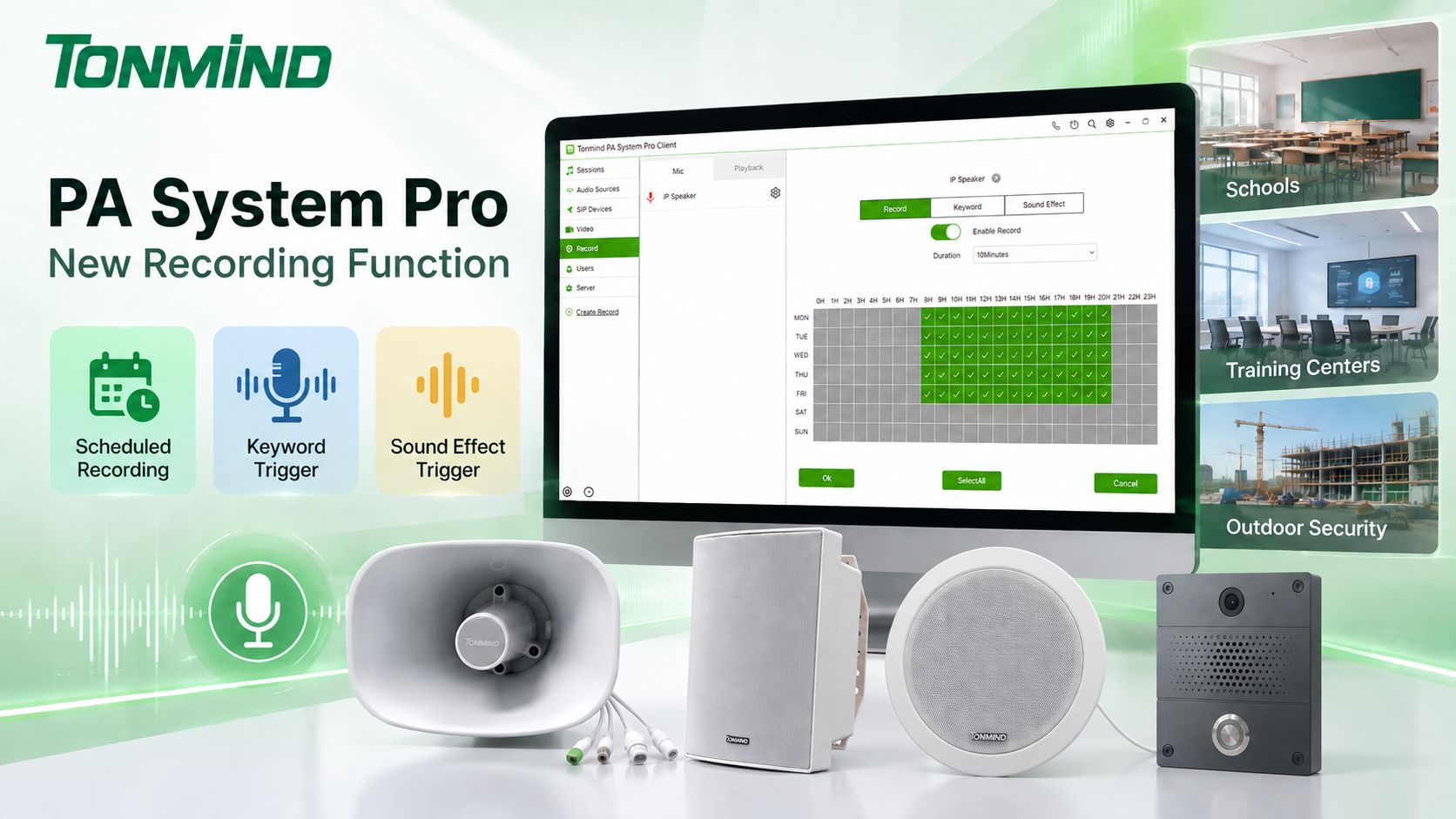
Tonmind PA System Pro es un software de gestión de audio IP todo en uno con un servidor SIP integrado. Basado en una arquitectura de servidor y cliente, admite la gestión multiusuario y el control centralizado de altavoces IP, intercomunicadores IP, micrófonos de megafonía IP y otros dispositivos SIP.
PA System Pro ofrece una amplia gama de funciones, que incluyen:
Con el soporte ONVIF, PA System Pro también puede integrar dispositivos de audio y vídeo compatibles en la misma plataforma, lo que lo hace adecuado no solo para aplicaciones tradicionales de megafonía, sino también para proyectos de seguridad y monitorización de audio.
La nueva función de grabación amplía aún más las capacidades de PA System Pro al permitir que el audio de los dispositivos ONVIF conectados se grabe y gestione directamente a través del software.
Hay tres modos de grabación disponibles:
El modo Grabación permite a los usuarios definir períodos de grabación específicos según sus necesidades.
Los usuarios pueden habilitar la grabación, seleccionar los días requeridos de lunes a domingo y configurar los períodos de tiempo de grabación deseados. Una vez guardada la programación, PA System Pro comienza a grabar automáticamente durante los períodos configurados.
Esto es particularmente útil cuando la grabación continua 24/7 no es necesaria.
Por ejemplo, una escuela puede grabar el audio del aula solo durante las horas de clase, mientras que un centro de formación puede grabar durante las clases o exámenes programados.
El modo Palabra clave proporciona una forma más inteligente de activar la grabación.
Los usuarios pueden configurar palabras clave específicas como:
“Hola” / “Adiós” / “Comenzar” / “Emergencia”
Cuando el micrófono de un dispositivo IP conectado detecta la palabra clave configurada, PA System Pro puede ejecutar automáticamente la acción correspondiente.
Por ejemplo:
Palabra clave detectada → Iniciar grabación
También se puede vincular con zonas de PA System Pro para realizar acciones como:
Palabra clave detectada → Iniciar reproducción de sesión
o
Palabra clave detectada → Detener reproducción de sesión
Esto permite que los comandos de voz formen parte del sistema de automatización de megafonía IP sin requerir que un operador controle manualmente cada acción.
Además de las palabras clave, PA System Pro puede reconocer diferentes tipos de sonidos y utilizarlos como activadores.
Los efectos de sonido pueden incluir diferentes eventos de audio como:
Por ejemplo, cuando Habla se selecciona como activador, PA System Pro puede iniciar automáticamente la grabación cuando el software reconoce el habla humana.
El sonido detectado también puede activar otras acciones:
Sonido detectado → Iniciar grabación
Sonido detectado → Iniciar reproducción de sesión
Sonido detectado → Detener reproducción de sesión
Esto transforma a PA System Pro de una plataforma de radiodifusión tradicional a un sistema de monitoreo de audio y respuesta a eventos más inteligente.
Configurar la grabación en PA System Pro es sencillo.
Asegúrese de que PA System Pro y los dispositivos IP estén conectados a la red.
Haga clic en “Crear registro” en PA System Pro. El sistema buscará dispositivos compatibles conectados a la red, como altavoces IP, intercomunicadores IP, micrófonos IP y otros dispositivos de audio IP.
Seleccione el dispositivo requerido en ONVIF, ingrese el nombre de usuario y la contraseña del dispositivo, y agréguelo a PA System Pro.
Una vez que el dispositivo se haya añadido correctamente, su audio podrá utilizarse para la grabación.
Elija uno de los tres modos según la aplicación:
Grabar: Configure los días y los periodos de tiempo para la grabación programada.
Palabra clave: Introduzca las palabras clave que activarán la grabación o las acciones de zona.
Efecto de sonido: Seleccione el tipo de sonido, como Voz, y configure la acción que se activará cuando se detecte el sonido.
Una vez completada la configuración, PA System Pro puede realizar automáticamente la grabación configurada o las acciones de megafonía.
La combinación de ONVIF audio, detección inteligente, grabación y control de zonas de megafonía hace que la nueva función sea adecuada para una amplia gama de aplicaciones.
En las aulas, los altavoces IP de Tonmind u otros dispositivos de audio IP con micrófonos pueden captar audio durante periodos de clase específicos.
Las escuelas pueden utilizar la grabación programada para registrar clases o actividades seleccionadas. También se puede configurar la detección de palabras clave para que comandos de voz específicos inicien la grabación o activen una zona de megafonía.
Esto puede ser útil para la grabación en el aula, el aprendizaje de idiomas, las conferencias, las actividades escolares y la comunicación en el campus.
Las instituciones de formación pueden grabar automáticamente las lecciones según sus horarios de curso.
En lugar de iniciar la grabación manualmente antes de cada lección, los administradores pueden configurar periodos de grabación de lunes a domingo. PA System Pro iniciará y detendrá automáticamente la grabación según el horario predefinido.
Esto es adecuado para cursos de formación, conferencias, seminarios, clases de idiomas y otras actividades educativas.
El modo Efecto de sonido aporta posibilidades adicionales a los proyectos de seguridad en exteriores.
Por ejemplo, los dispositivos de audio IP con micrófonos pueden instalarse junto con cámaras CCTV en aparcamientos, obras, campus, almacenes u otras áreas al aire libre.
Cuando el sistema detecta un evento de sonido seleccionado, puede iniciar automáticamente la grabación. También puede activar una zona de megafonía para reproducir un mensaje de advertencia.
Un flujo de trabajo típico podría ser:
Sonido anormal detectado → Iniciar grabación → Activar zona de megafonía → Reproducir mensaje de advertencia
Esto proporciona información de audio útil junto con la videovigilancia tradicional y puede ayudar a los operadores a revisar los eventos de forma más eficiente.
La función también puede utilizarse en centros comerciales, edificios de oficinas, instalaciones de transporte, almacenes y otras áreas públicas.
Dependiendo de los requisitos del proyecto, la grabación puede activarse solo durante periodos específicos o ser activada por palabras clave o eventos de sonido. Esto reduce las grabaciones innecesarias a la vez que proporciona registros de audio cuando ocurren eventos predefinidos.
Con la nueva función de grabación, Tonmind PA System Pro va más allá de la megafonía y la radiodifusión tradicionales.
Al combinar grabación programada, reconocimiento de palabras clave, detección de efectos de sonido, integración ONVIF y control de zonas, el software permite que los dispositivos de audio IP no solo emitan sonido, sino que también escuchen eventos de audio predefinidos y respondan automáticamente según las reglas configuradas.
Ya sea para educación, formación, vigilancia de seguridad, instalaciones comerciales o espacios públicos, la nueva función de grabación proporciona a los usuarios una forma más flexible e inteligente de gestionar el audio IP.
Junto con los altavoces IP, intercomunicadores IP, micrófonos IP y otros dispositivos de audio SIP y ONVIF de Tonmind, PA System Pro proporciona una plataforma unificada para radiodifusión, comunicación, vigilancia, grabación y respuesta inteligente a eventos de audio.